HMI Introduction
In this section you will get some brief information about:
-
What is the Roson Control Interface.
-
A general organization of the screens on the monitors.
-
How to work with touchscreens.
Roson Control Interface
Control interface is an application developed for operating a Roson. It consists of three parts:
- Automatic screen is used to operate the Roson in an automatic mode. Navigate to this screen by tapping the Automatic label on the navigation bar.
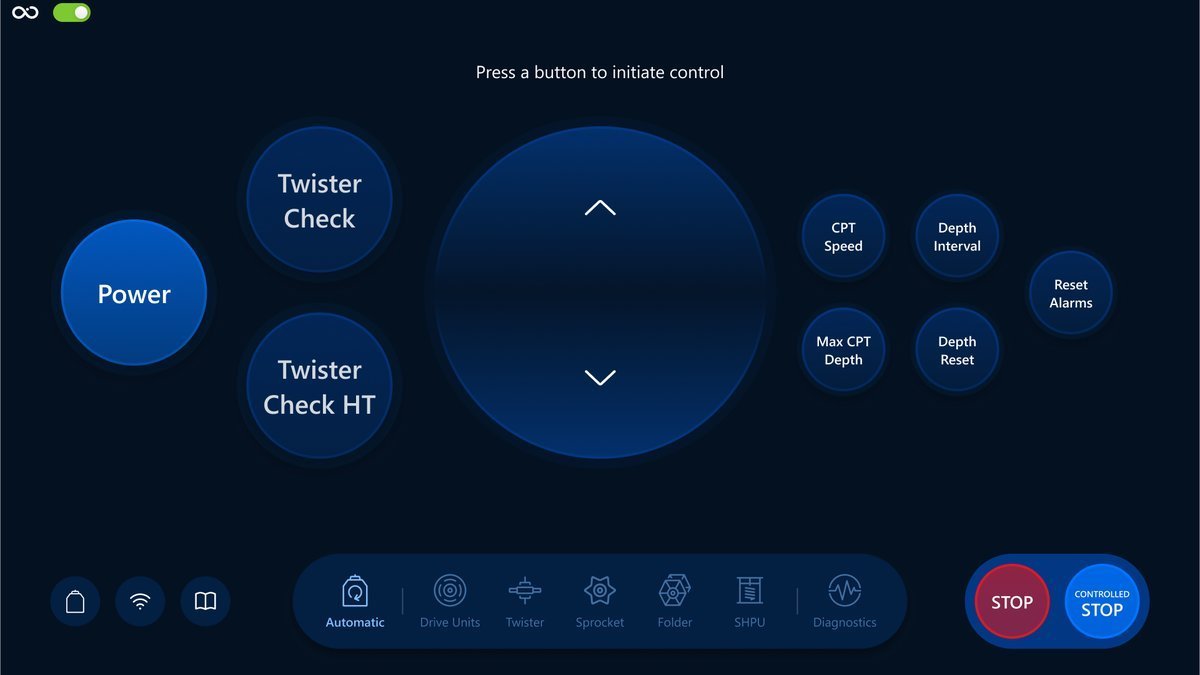
Follow this link to find more information about Automatic mode screen: Automatic screen overview.
- Manual Control screens is used to operate the Roson in a manual mode. The Operator can use different manual control screens by using the navigation bar on the bottom of the screen, which are: Drive Units, Twister, Sprocket, Folder and SHPU.
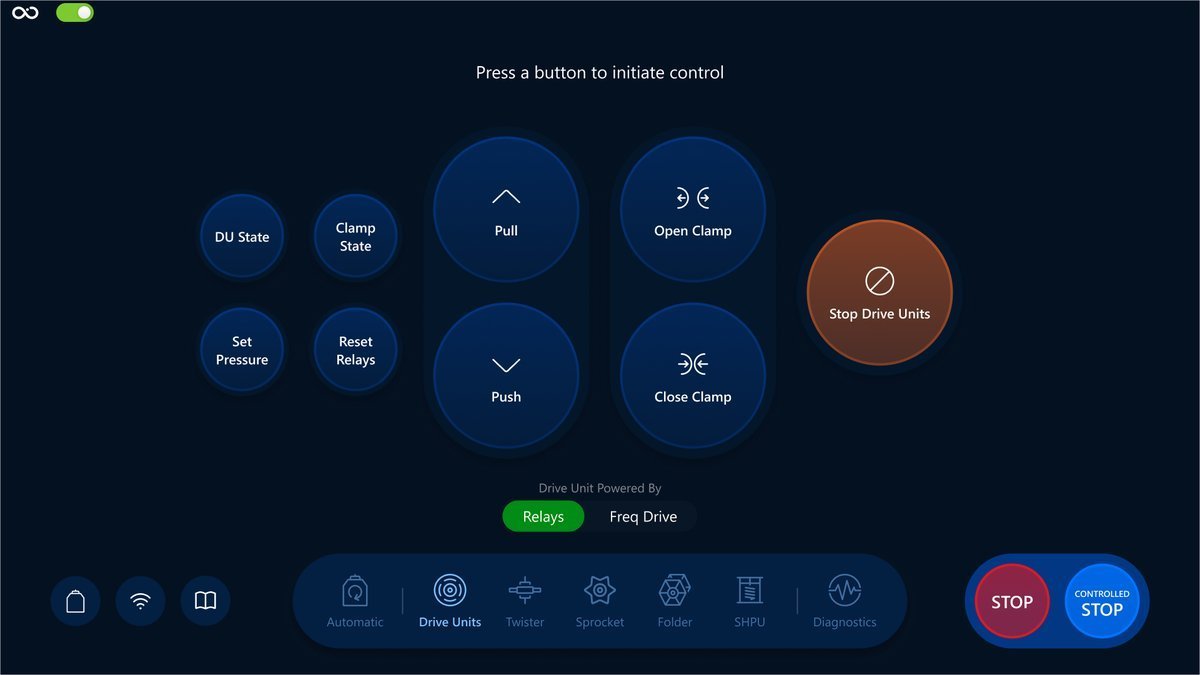
For more information about Manual Controls screens, follow the link: Manual Mode overview.
- Diagnostics screen which is used for managing the settings and additional diagnostics of the Roson. Tap the Diagnostics label on the navigation bar to navigate to this screen.
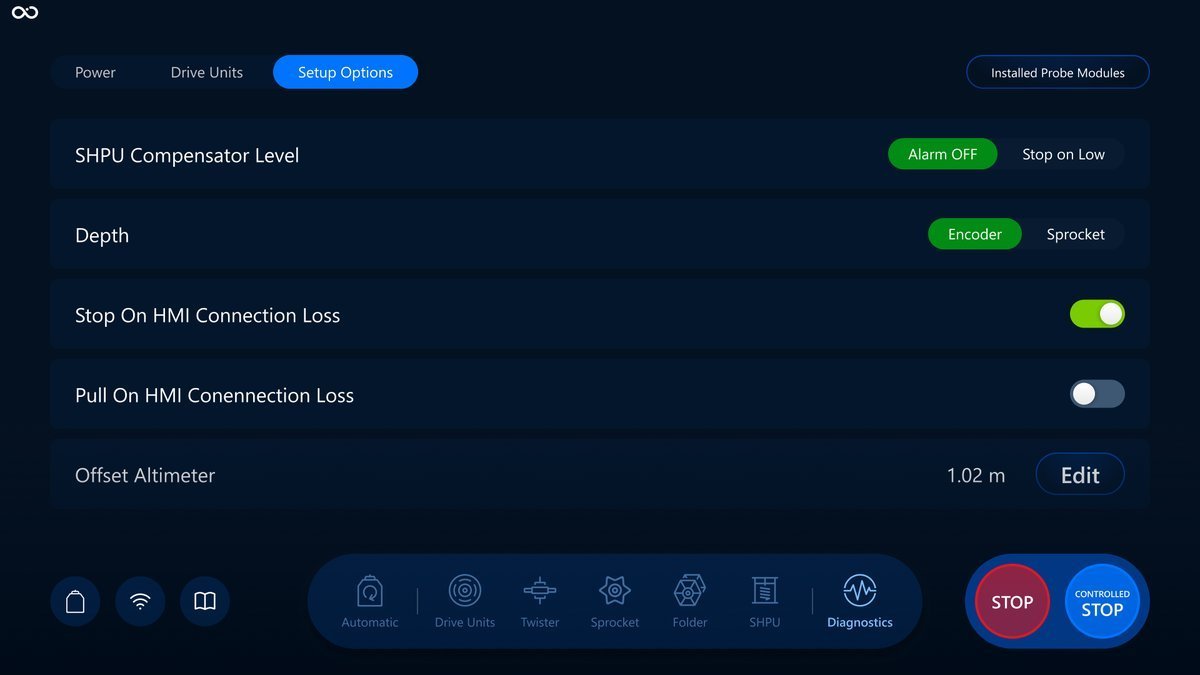
You can read more about this screen here: Diagnostics screen overview.
Organization of the screens on the monitors
There are two monitors available for displaying the necessary screens.
First monitor always displays the Visualization screen, which is responsible for displaying the information:
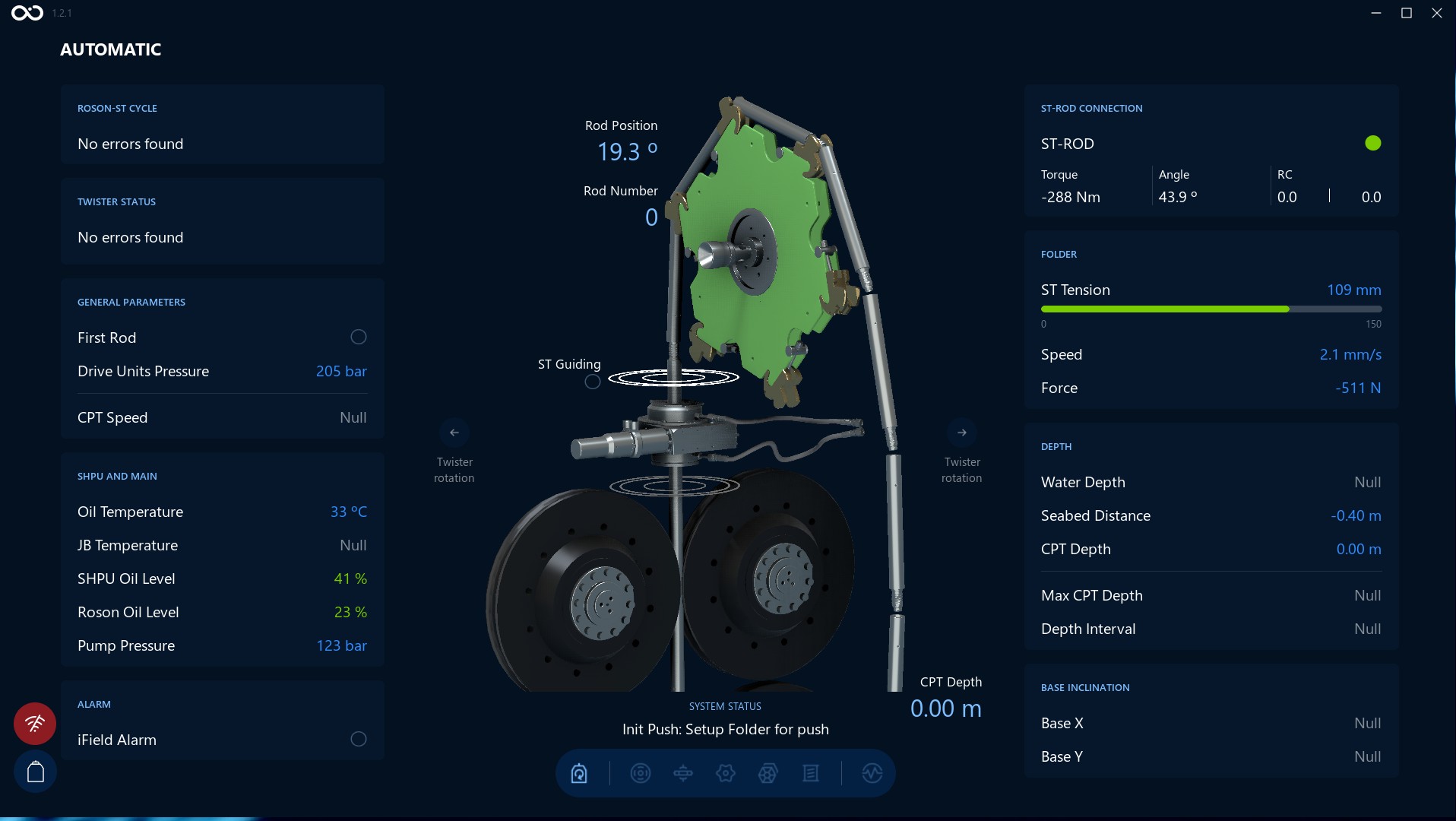
Second monitor (touchscreen) is responsible for displaying the Controls screens, some of them (Automatic and Diagnostics) were shown previously in this section. This is the interface to control the Rosons.
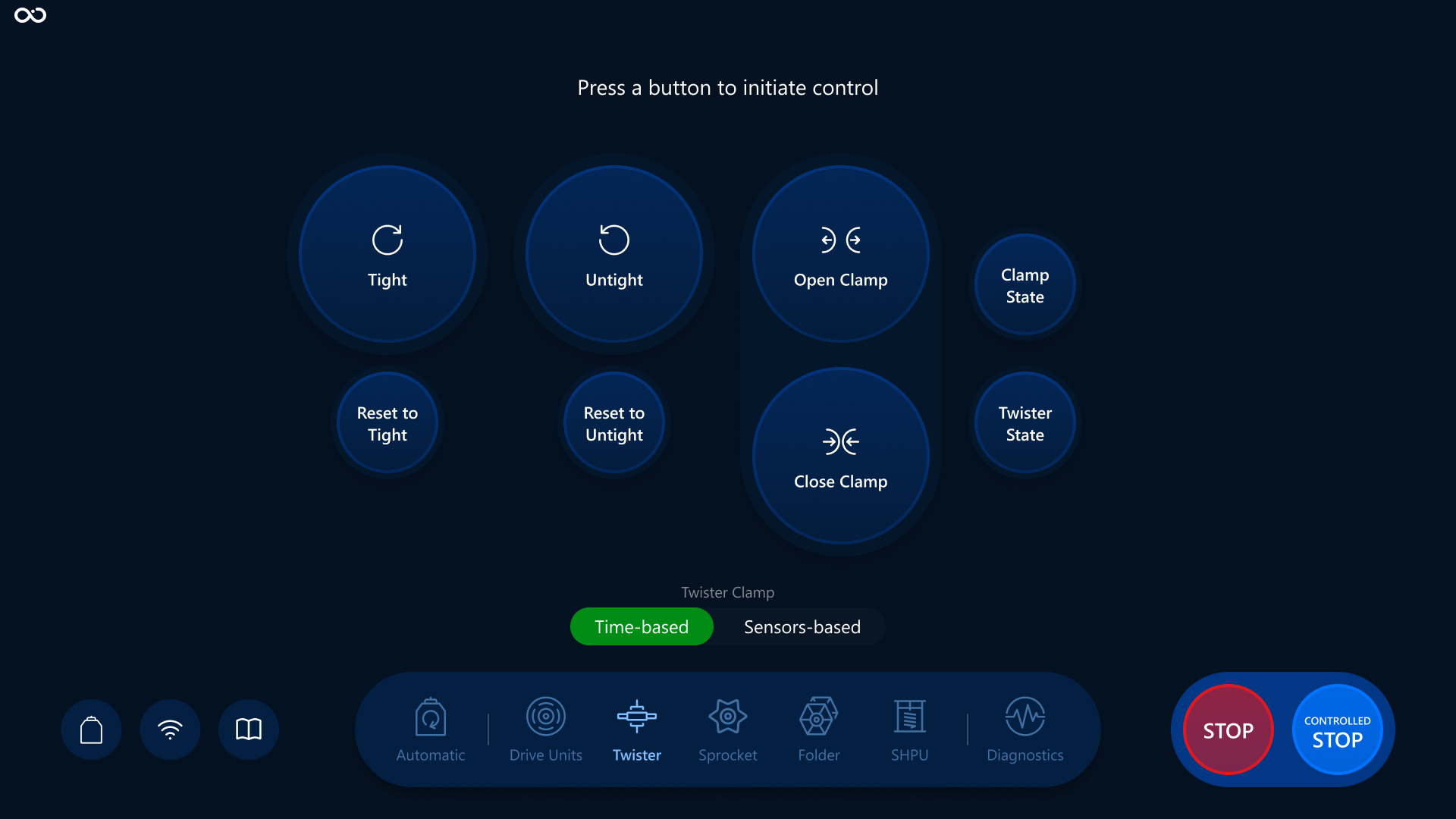
Here is another example - of the Twister Control screen:
How to use a touchscreen
To tap, lightly place the tip of your index finger onto the screen and raise it again, quickly. The touch only needs to be for a fraction of a second for the screen to respond and you don't need to press down hard. Tapping can be used for typing text and numbers or to select buttons.
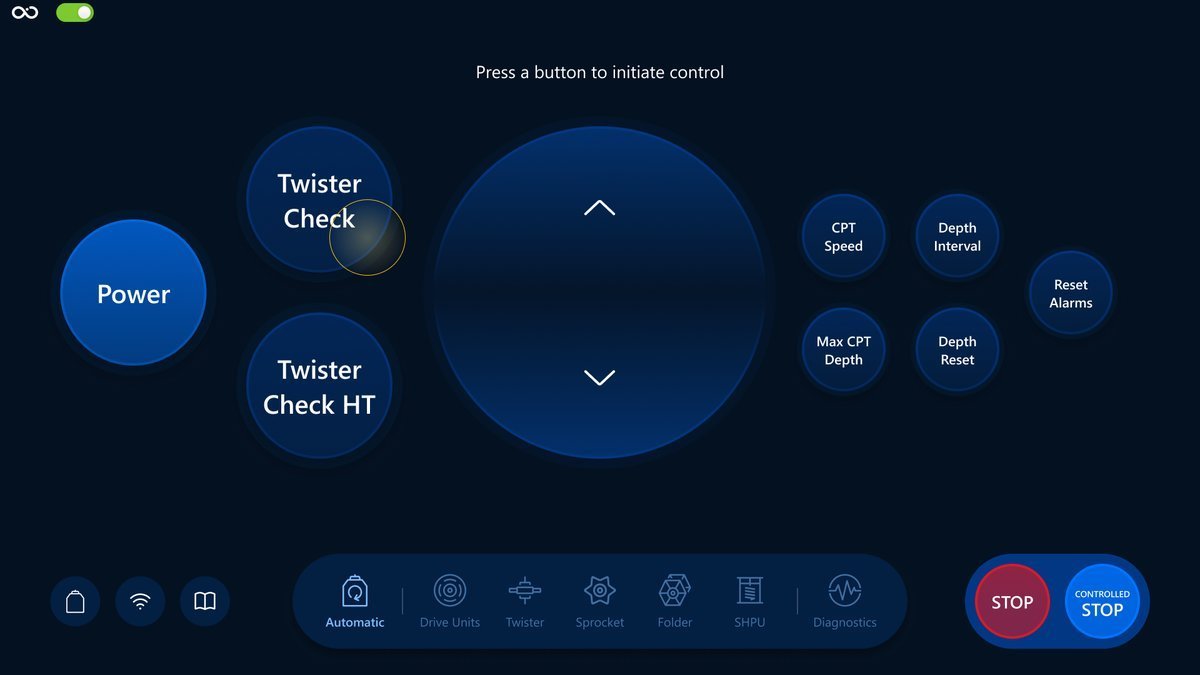
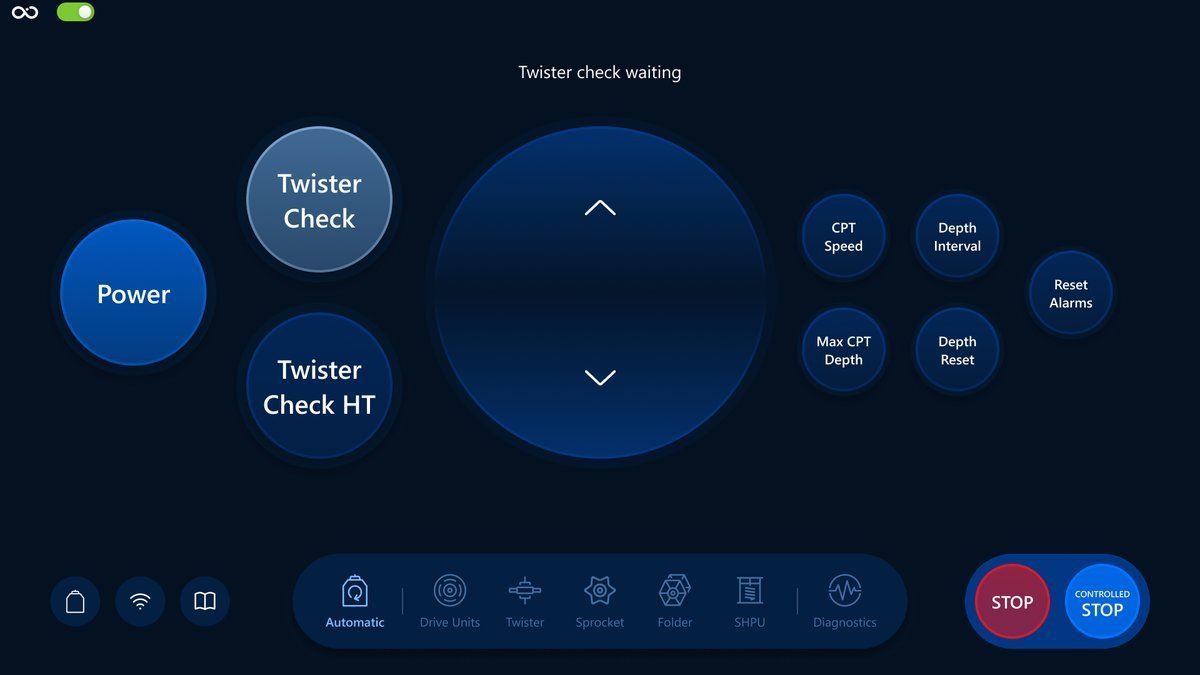
For example, to run the Twister check command, tap on a Twister Check button (tap action illustrated as an orange circle) and after raising a finger the button will change color, which means the operation started:
Tap action:
Action started:
Next section
In this section you've learned what is the Roson Control Interface, the general organization of the screens on the monitors and how to use the touchscreen. Feel free to start learning the controls by following this link: Control Interface.