Generate Offshore Logs
After a test has completed, an offshore log can be generated for it. This is done using the Generate Offshore Logs shortcut found on the desktop, which runs a small tool in a terminal window.
How to Generate an Offshore Log
1. Launch the tool
Double-click the Generate Offshore Logs shortcut on the desktop. A terminal window will open and prompt you to enter a test name:
Enter test name (blank to quit):
Type the name of the test you want to generate an offshore log for and press Enter.
2. What happens next depends on how many tests match that name
A test name unique to a single project
If only one test with that name exists, the tool generates the offshore log for it straight away — no further input is required.
The test name exists in more than one project
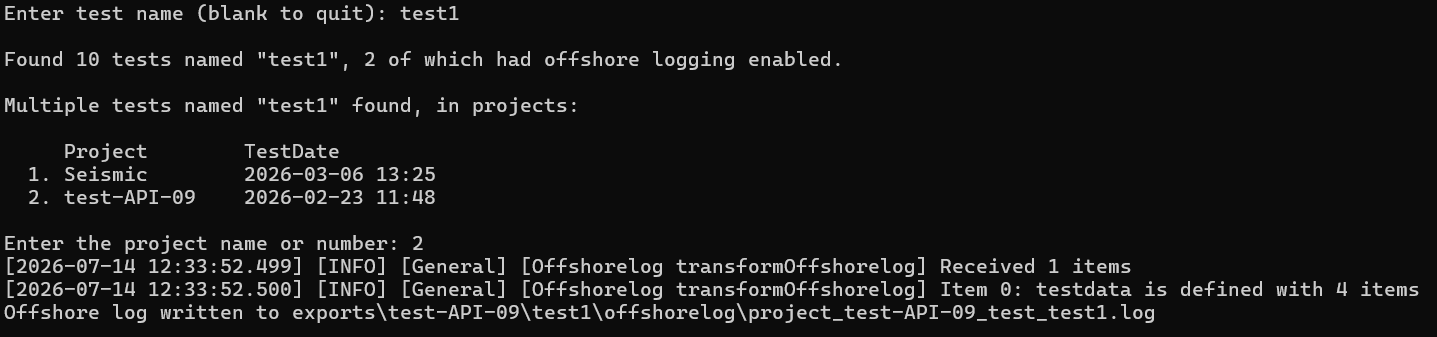
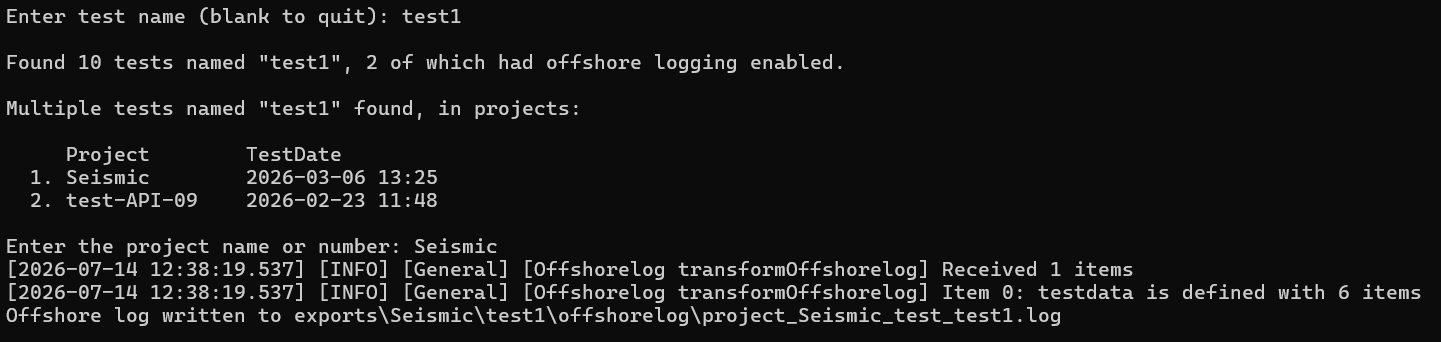
If the same test name exists in multiple projects, the tool lists every project the test was found in, along with the date the test was run, and asks you to choose one:
Found 10 tests named "test1", 2 of which had offshore logging enabled.

Multiple tests named "test1" found, in projects:

     Project        TestDate
  1. Seismic         2026-03-06 13:25
  2. test-API-09     2026-02-23 11:48

Enter the project name or number:
You can respond either by number or by typing the project name directly:
Note
The tool only lists projects where the test had offshore logging data available — in the example above, 10 tests were found named "test1", but only the 2 with offshore logging enabled are offered as options. All tests should have offshore logging enabled, but older tests may not.
No test found with that name
If no test matches the name entered, the tool reports this and stops. Double-check the spelling of the test name and try again.

Tests found, but none have offshore logging data
If one or more tests are found with that name, but none of them have offshore log data available, the tool reports this and stops:

Warning
This means offshore_logging wasn't enabled, or no offshore hardware was detected, during the test itself. Offshore logs cannot be generated retroactively for a test that didn't capture this data — offshore logging must be enabled before/during test acquisition.
3. Offshore log generated
Once generation succeeds, the tool prints where the log was written, for example:
Offshore log written to exports\test-API-09\test1\offshorelog\project_test-API-09_test_test1.log
The folder containing the generated offshore log then opens automatically.
Output Location
Offshore logs are written to:
oi-icc-api_node20\exports\<project_name>\<test_name>\offshorelog\<log_file>.log
Where <project_name> and <test_name> match the project and test selected during generation.