Retrieve GRU Files
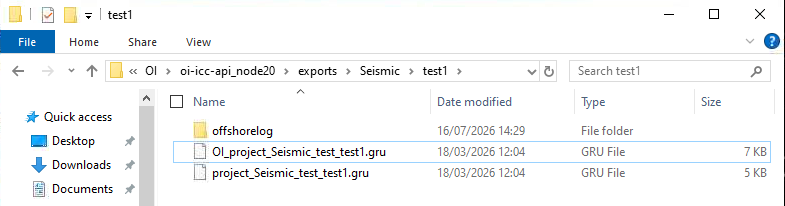
Our software generates two GRU files per test:
- Original (from APV software)
- Prepared (our improved version)
These are automatically created upon test completion.
How to Retrieve GRU Files
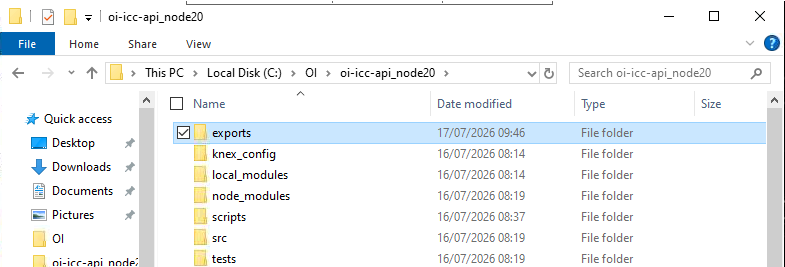
Double-click the Exports shortcut on the Desktop to jump straight to the base exports folder (see Ocean Infinity Shortcuts). From there, navigate into the specific project folder, then the specific test folder.
Alternatively, you can navigate there manually:
C:\OI\CPT\oi-icc-api_node20\exports
Locate the folder matching the project name and test name. GRU files will be inside.
Examples:
File Structure Requirements
To move GRU files from ICC to shore (M:/ drive), follow these structures:
1. ICC File Structure
C:\PATH\TO\APV\API\FOLDER\EXPORTS
└── <project_name>
    └── <test_number>
        ├── OI_project_<project_name>_test_<test_name>.gru
        └── project_<project_name>_test_<test_name>.gru
2. M:/ Drive Structure
M:\projects
└── 2024
    └── <project_name>
        └── 2_Raw_Data
            └── A7803
                └── iFieldICC
                    ├── GRU
                    │   ├── Original
                    │   │   └── project_<project_name>_test_<test_name>.gru
                    │   └── Prepared
                    │       └── OI_project_<project_name>_test_<test_name>.gru
                    ├── LOG
                    └── SE2
                        └── [Location]
3. Syncing Files
A watcher process should monitor ICC exports and move files to the M:/ structure. This will then be made available on the DATA environment to whoever has permissions to access the project folder